Windows Server 2019 Remote Desktop Services Device Connections 50 CAL
38 $
Description
If your business runs Windows Server 2019 and several people use the same computers to access remote desktops or hosted applications, this 50 Device CAL pack is usually the cleaner licensing choice. Instead of licensing each person separately, you license the devices that connect to the RDS environment.
This makes the license practical for shared desks, production terminals, reception computers, call centers, labs, warehouses, and other setups where the workstation stays the same but the users change during the day.
You can also explore other Microsoft software licenses.
Who is this license best for?
Windows Server 2019 RDS Device CALs are best suited for environments where access is tied to fixed machines rather than named employees. If your team works in shifts or uses shared computers, device-based licensing can be easier to manage and more predictable than tracking individual users.
- Shared workstations used by different employees
- Reception desks, call centers, and help desk computers
- Factory, warehouse, or production terminals
- Training rooms, labs, or classroom-style setups
- Businesses already using Windows Server 2019 RDS
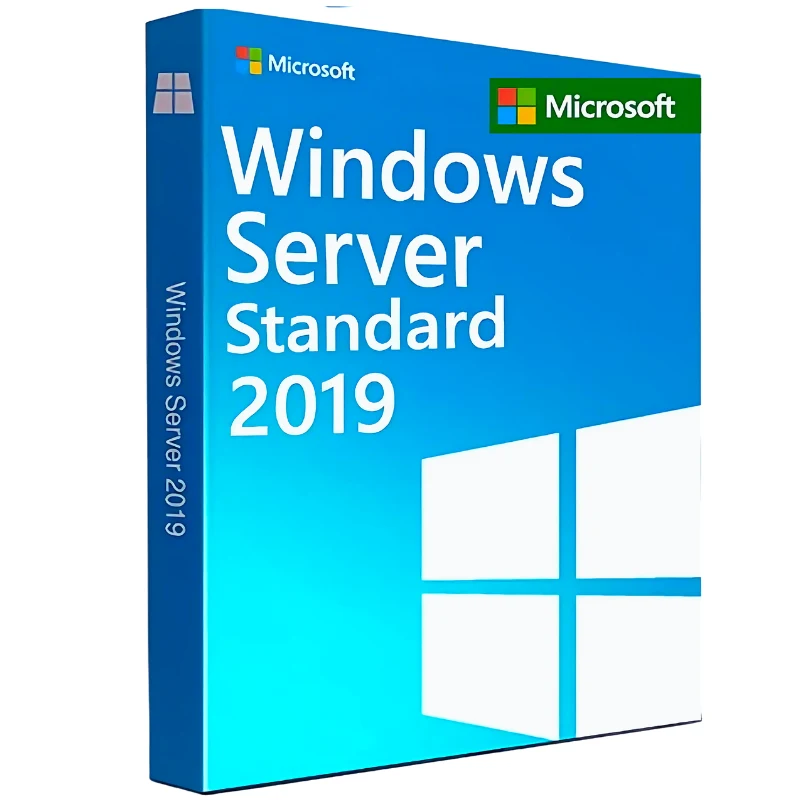
If you still need the base server operating system, you can get it here Microsoft Windows Server 2019 Standard.
RDS Device CAL vs User CAL – which do you need
Choosing between Device and User CALs is one of the most common questions in RDS licensing. The right choice depends entirely on how your users access the environment:
| RDS Device CAL | RDS User CAL | |
|---|---|---|
| License assigned to | A specific device | A specific named user |
| Users per device | Unlimited | 1 named user |
| Devices per user | 1 licensed device | Unlimited devices |
| Best for | Shared PCs, kiosks, shift workers | Remote workers using multiple devices |
| Active Directory required | No | Yes for enforcement |
Device CALs are the right choice when multiple different users share the same physical workstations – factory floors, hospital terminals, call centers, or any shift-based environment. If your users each work from their own dedicated device and connect from multiple locations, Windows Server 2019 RDS 50 User CAL may be the more cost-effective option.
RDS CAL version compatibility
RDS CAL version compatibility is strictly enforced by Microsoft and is one of the most important things to get right before purchasing:
- RDS 2019 CALs work with – Windows Server 2019, 2016, 2012 R2, and earlier versions
- RDS 2019 CALs do NOT work with – Windows Server 2022 or 2025
- Upgrade planning – If you plan to upgrade to Windows Server 2022 in the future, Windows Server 2022 RDS 50 Device CAL is backward compatible and will work on your current 2019 environment – purchasing 2022 CALs now is a valid future-proofing strategy.
If you are maintaining an older setup, you should get Microsoft Windows Server 2016 RDS Device Connections 50 CAL.
Who needs this license
Windows Server 2019 RDS 50 Device CAL is the right choice for:
- Organizations running Windows Server 2019 as a Remote Desktop Session Host for remote desktop or published application access
- Environments where multiple users share the same physical devices across different shifts or time slots
- Kiosk deployments, factory floors, hospital terminals, or any scenario where the device is the consistent point of access rather than the individual user
- IT administrators adding RDS capacity to an existing compliant Windows Server 2019 deployment
- Medium-sized deployments where a 50-pack provides cost-effective per-device licensing
If you are not sure whether Device CALs or User CALs are better for your setup, you can Contact Us.
Frequently asked questions
Do I need a Windows Server license in addition to these CALs?
Yes. The Windows Server 2019 RDS 50 Device CAL pack licenses the Remote Desktop Services connection rights only. A separately licensed Windows Server 2019 installation is required as the foundation. The server license and RDS CALs work together – one without the other is not a compliant deployment.
Can different users connect from the same licensed device?
Yes. A Device CAL is tied to the device, not the person using it. Once a device holds a valid RDS Device CAL, any number of different users can connect from that device to the session host. This is exactly what makes Device CALs the preferred choice for shared workstations and shift environments.
Will these CALs work after I upgrade to Windows Server 2022?
No. RDS 2019 Device CALs are not forward compatible with Windows Server 2022 or later versions. After upgrading the server to 2022 you will need RDS 2022 CALs. RDS 2022 CALs are backward compatible with Windows Server 2019, so purchasing 2022 CALs ahead of a planned upgrade is a practical option.
Browse more options in our Windows Server category.
Reviews
Good seller, heled through a tricky issue but got it sorted
Good seller, heled through a tricky issue but got it sorted
Product exactly as described, downloaded and set-up with ease. Excellent seller, thanks.
Product exactly as described, downloaded and set-up with ease. Excellent seller, thanks.
Delivered as specified.
Delivered as specified.
Product and key worked perfectly - thanks!
Product and key worked perfectly – thanks!